Certain Point of Sale providers like Stripe, Square, Toast, PayPal or Zenoti periodically change their Merchant Identification number (MID), which can create problems when you are trying to help a customer redeem their Restaurant Finder Card.
In order to help you get back online faster, we’ve developed the Terminal Reactivation Self-Service tool.
What follows are step-by-step instructions to help you get your terminal back online quickly and easily.
Step 1 – Log Into Your Merchant Dashboard
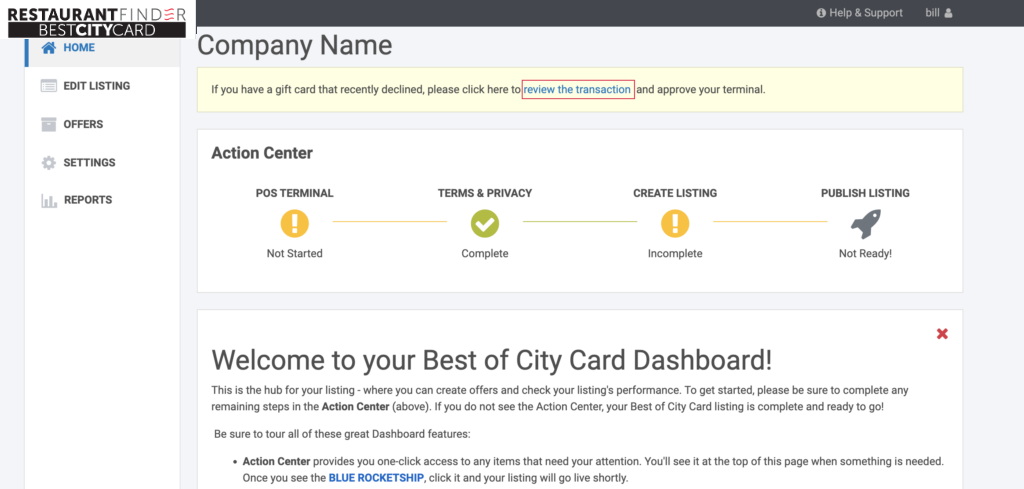
To access the Terminal Reactivation Self-Service tool, log into your merchant dashboard; then click the link that says “review the transaction” that appears at the top of the page.
Step 2 – Enter the Restaurant Finder Gift Card’s 16-Digit Number
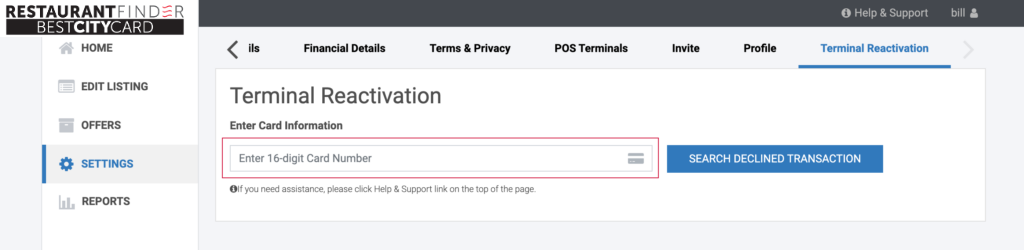
Enter the 16-Digit number; then click the blue “Search Declined Transaction” button.
Step 3 – Confirm The Transaction & Approve
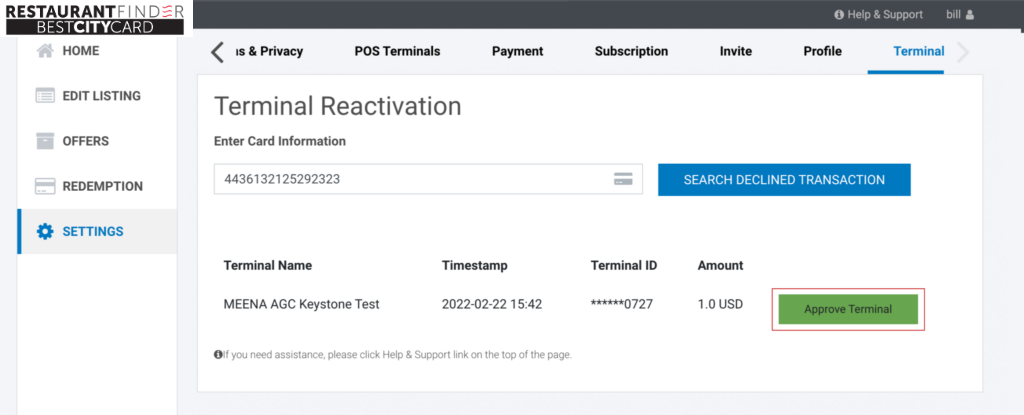
Confirm that the transaction that appears under the “Terminal Name” field looks correct. If it does, click “Approve Terminal”. You should then see the success message:

Step 4 – Re-Run the Gift Card Through Your Point of Sale
Simply run the card through your point of sale system to complete the transaction. If you have difficulties or need to report anything that looks incorrect or suspicious, please contact our Customer Service team at 1-833-528-4748.