The Restaurant Finder Merchant Dashboard features a “User Roles” capability, offering two distinct user categories: Manager and Staff.
With these roles, Restaurant Finder Merchants can control access levels and safeguard business information.
- Staff members can view all Dashboard pages, create offers, and download reports—except for any content within Settings.
- Managers have full access, including the ability to view and modify pages within Settings.
This structure ensures better security and operational efficiency while allowing businesses to delegate tasks effectively.
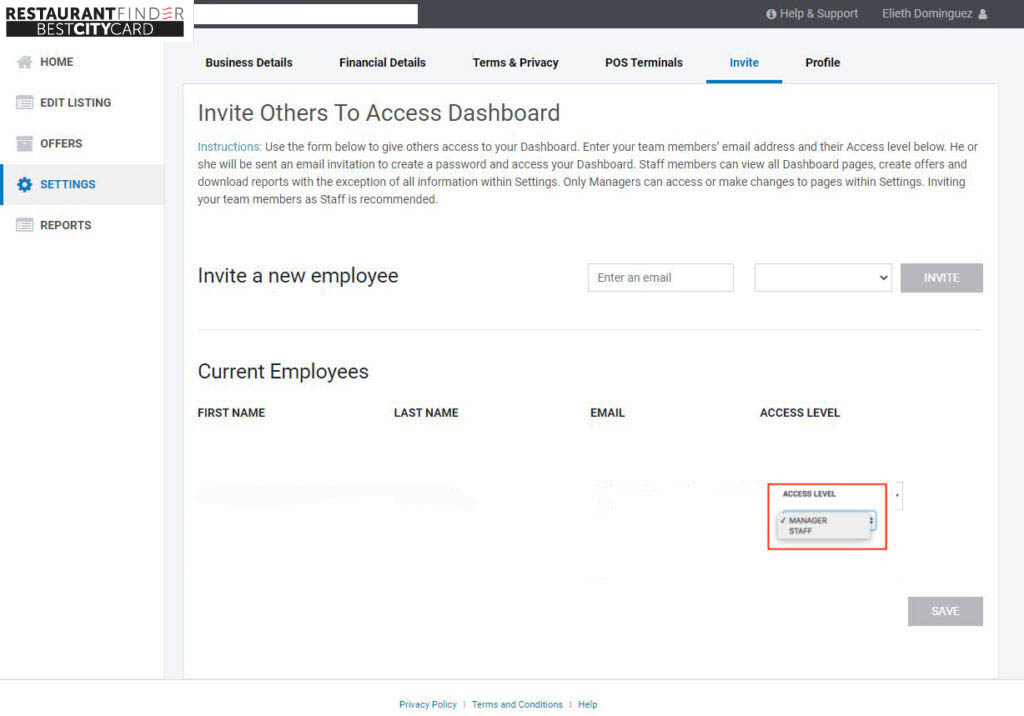
How to Change an Existing User Role:
- Log into your Merchant Dashboard and navigate to Settings.
- Under Settings, click on the Invite tab (located just below the dark bar at the top of the page).
- Scroll down to the Current Employees section to view all users with access to your Merchant Dashboard.
- To update a user’s role, use the dropdown menu under Access Level and select the desired role.
How to Invite a New Member:
- Once they receive the email, they should click the link, set up their password, and log in using the provided email address.
- Navigate to the Invite tab by following the steps outlined above.
- Under Invite a New Employee, enter the person’s email address and select their role (we recommend choosing “Staff”).
- Inform the employee to expect an invitation email from Best City. (Remind them to check spam or other folders if they don’t see it.)
- Once they receive the email, they should click the link, set up their password, and log in using the provided email address.
That’s it!
Please take a moment to explore the new “Invite” option under Settings. To maintain security, we recommend limiting Manager access to only a select few, as the Staff role provides employees with all the tools they need to keep your Restuarant Finder listing updated and current.
Thank you for being part of the Restaurant Finder Merchant Network!